Wie können wir helfen?
Edit group conversation
1. Open the chat
You must be an active user (sign up for a subscription plan here) and have Talk included in your plan (see overview here). Launch CAMPUS (log in here) and click the Talk icon in the top menu bar: (or click here).
Tip: Click here for instructions on how to create a group chat
2. Overview of a group chat
Your screen will then display a brief welcome message and, usually on the left side, a list of your existing group chats:
Click to enlarge
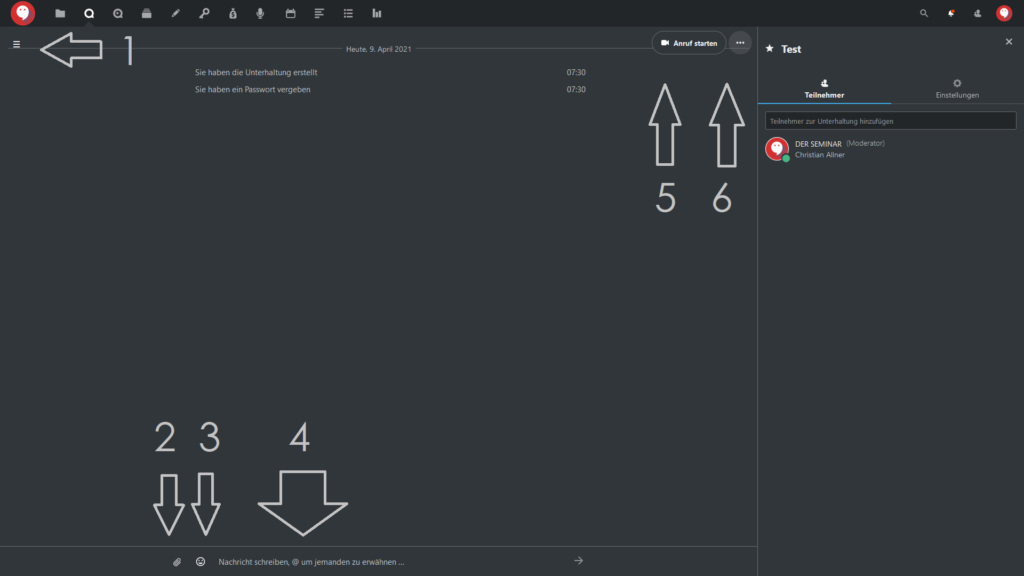
In a group chat, you’ll see the following elements:
1.The ≡ icon with the left-hand menu (overview of all group chats and the option to create new ones via the + button)
2.Upload and insert files into the chat
3.Insert emojis into the chat
4.Type text in the chat
5.Start a video or audio call
6.Additional settings
2.1 Chat Features in Talk
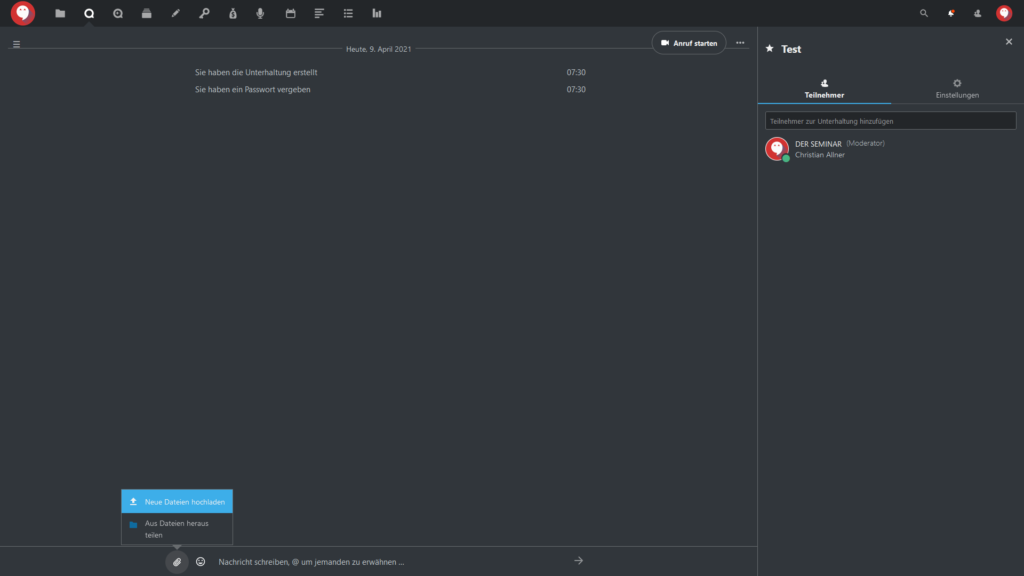
You can upload files at any time directly from your computer or from the cloud storage integrated into DER SEMINAR CAMPUS.
You can also insert emojis into your chat conversations.
-

- Zum Vergrößern anklicken
-
- Zum Vergrößern anklicken

2.2 Group Chat Settings
To the right of the “Start Call” button, click on “…” to access additional settings for Talk, specifically:
Full Screen: The chat window expands to full-screen view. You can exit this view by pressing the “f” key, or alternatively, press the “Esc” key
Rename Chat: You can give the group chat a different name
Share Link: You can enable or disable the option to join a group chat only via a link
Copy link: Only available if “Share link” is enabled; the join link is automatically saved to your clipboard
Password protection: You can set a password to provide additional security for the group chat
Enable lobby: You can start a lobby feature; participants in your chat will wait in a digital lobby until you, as the host, start the group chat.

Click to enlarge
3. Right-hand menu column
The right-hand menu column has two tabs:
- Participants
- Settings
-
- Zum Vergrößern anklicken

3.1 Edit participants
The right-hand menu column has two tabs:
1.Participants
2.Settings
3.2 Settings
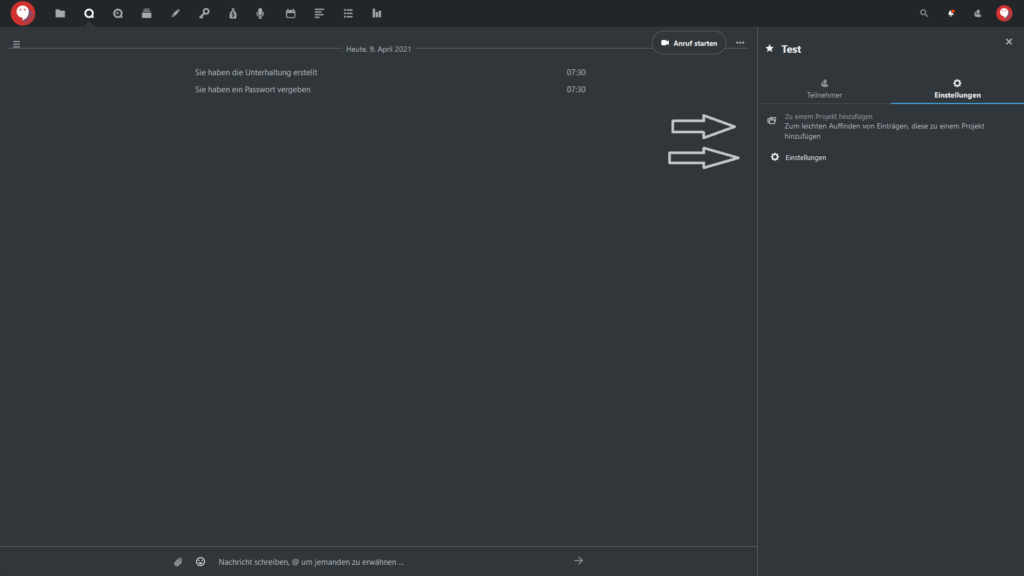
In the “Settings” tab, you can add a group chat to a project or adjust other settings.
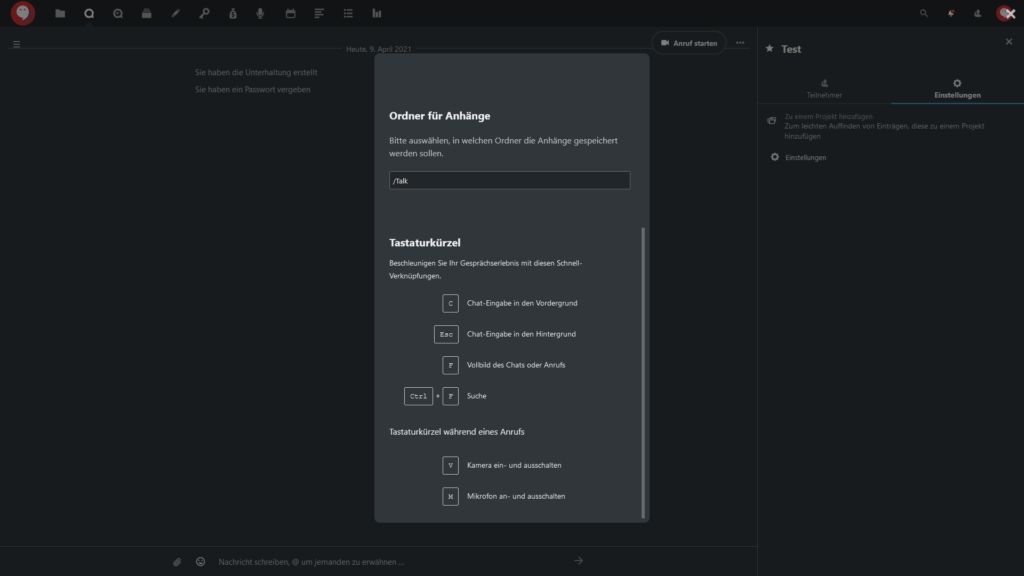
The settings offer the following options:
- Select Devices: You can choose between different microphones and cameras connected to your device
- Folder for Attachments: Where should files be saved when uploaded in the chat?
- Keyboard Shortcuts: An overview of all keyboard shortcuts
-
- Zum Vergrößern anklicken
-
- Zum Vergrößern anklicken

-
- Zum Vergrößern anklicken