Maybe we can help?
How do I create a new chart?
Creating diagrams and similar simplified drawings can be useful in many areas. Unlike other features in CAMPUS, the “Diagrams” feature is not assigned to a standalone app. This is because diagrams are treated the same way as other files in CAMPUS.
The Diagrams feature is sourced from a third-party API but is fully integrated into CAMPUS with its functions. This means you do not need to use a third-party app to create a diagram. So, if you want to create a diagram, open the “Files” menu item in your feature overview.
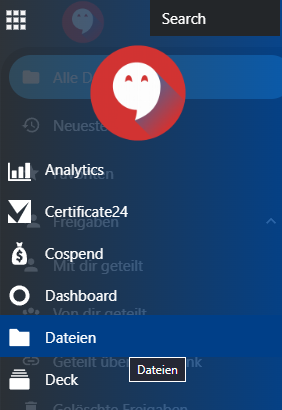 Once you’ve opened the “Files” app, you can create a new diagram. To do this, first select an appropriate folder structure. This will allow you to save the diagram in the right place so you can easily find it later. Once you’ve opened the folder where you want to save the diagram, click the “New” button at the top left of the page.
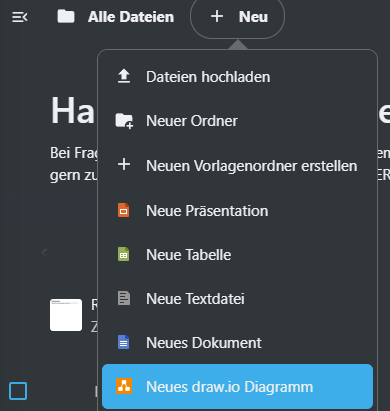
 This section lists all the files that can be created. For this example, however, select “New draw.io Diagram.” Once you click the button, a new file is created in the designated folder and opens automatically.
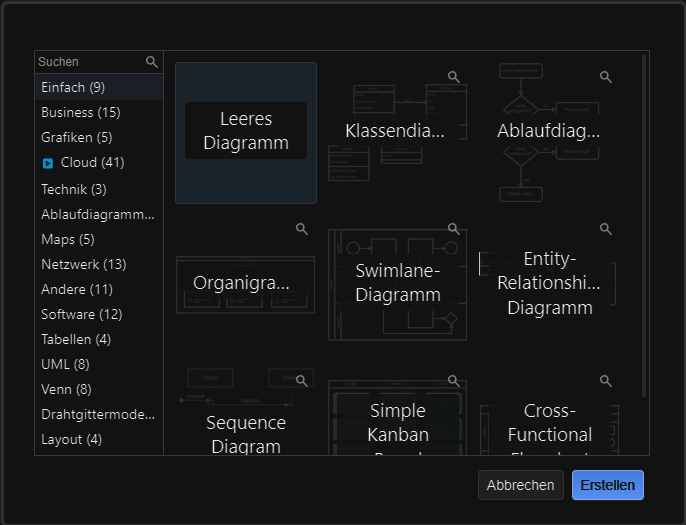
Once the file is open, you must choose from various diagram templates. These range from business diagram templates to UML-notation diagrams and entity-relationship diagrams. However, you can also create a completely blank diagram and customize it entirely to your liking. Once you select “Create,” you can begin working on your diagram.
This section lists all the files that can be created. For this example, however, select “New draw.io Diagram.” Once you click the button, a new file is created in the designated folder and opens automatically.
Once the file is open, you must choose from various diagram templates. These range from business diagram templates to UML-notation diagrams and entity-relationship diagrams. However, you can also create a completely blank diagram and customize it entirely to your liking. Once you select “Create,” you can begin working on your diagram.
Once you’ve opened the “Files” app, you can create a new diagram. To do this, first select an appropriate folder structure. This will allow you to save the diagram in the right place so you can easily find it later. Once you’ve opened the folder where you want to save the diagram, click the “New” button at the top left of the page.
 This section lists all the files that can be created. For this example, however, select “New draw.io Diagram.” Once you click the button, a new file is created in the designated folder and opens automatically.
Once the file is open, you must choose from various diagram templates. These range from business diagram templates to UML-notation diagrams and entity-relationship diagrams. However, you can also create a completely blank diagram and customize it entirely to your liking. Once you select “Create,” you can begin working on your diagram.
This section lists all the files that can be created. For this example, however, select “New draw.io Diagram.” Once you click the button, a new file is created in the designated folder and opens automatically.
Once the file is open, you must choose from various diagram templates. These range from business diagram templates to UML-notation diagrams and entity-relationship diagrams. However, you can also create a completely blank diagram and customize it entirely to your liking. Once you select “Create,” you can begin working on your diagram.