Maybe we can help?
Gruppenunterhaltung erstellen
1. Open the chat
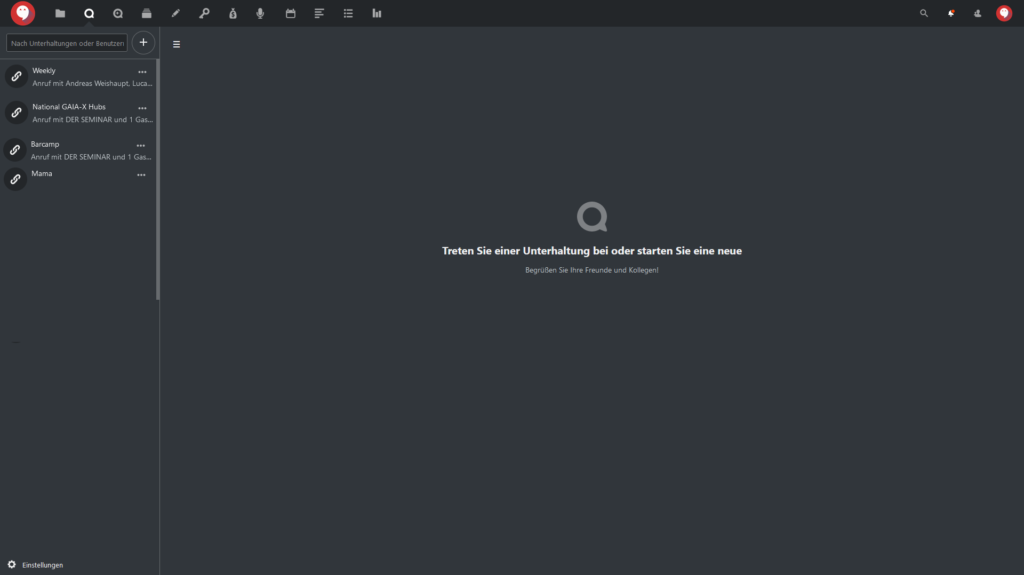
You must be an active user (sign up for subscription packages here) and have Talk included in your package (see overview here). Launch CAMPUS (log in here) and click the Talk icon in the top menu bar: (or click here).
Your screen will then display a brief welcome message and, usually, an overview of your existing group chats on the left-hand side.
:
Click to enlarge.
2. Create a group conversation
If the left-hand menu bar is not visible, click the ≡ icon. The menu bar will then appear.
2.1 Create a new group chat
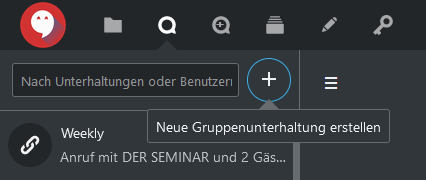
In the menu bar, click the highlighted + icon to create a new group chat:
Click to enlarge.
2.2 Allow guests, enable password protection (optional)
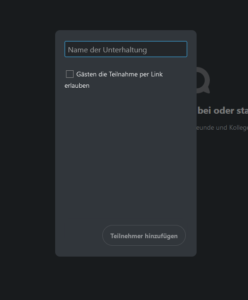
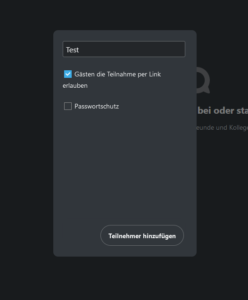
A window will then appear where you can configure various settings:
-

- Click to enlarge.
-
- Click to enlarge.
-
- Click to enlarge.
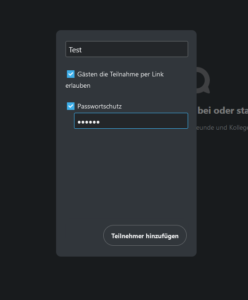
First, give the conversation a name. You then have the option to share the conversation with guests (you’ll receive a personalized link to share at the end) and you can also secure the conversation with a password. Both of these are optional settings; you can choose to use them, but you don’t have to.
Then click “Add participants”
.
2.3 Add participants (optional)
IIn the next window, you can choose to add users who are already registered with DER SEMINAR CAMPUS to the conversation.
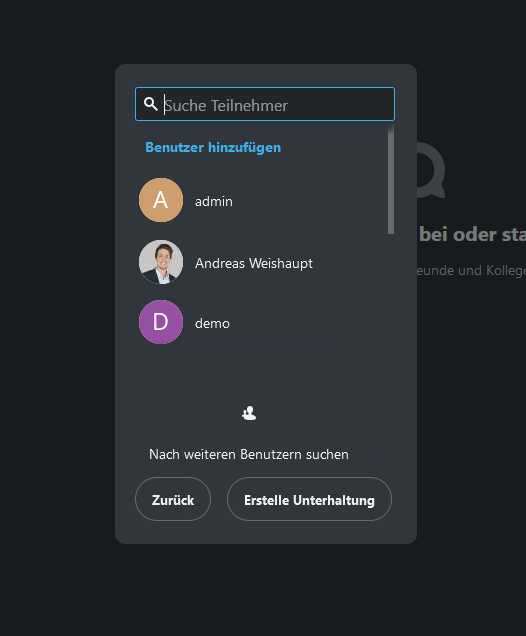
Click to enlarge
You can also add or remove registered users later. This setting is particularly useful when planning internal team meetings.
Whether or not you’ve selected users, click “Create Conversation”
2.4 Conversation created (optional: Share link)
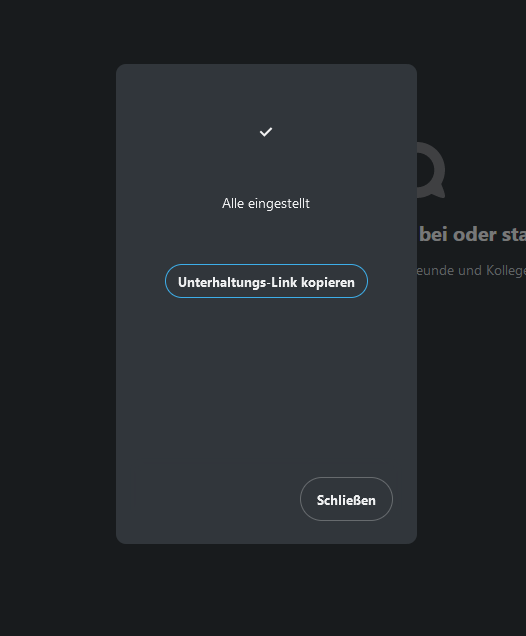
The conversation and the associated room have now been created:
-
- Click to enlarge
-
- Click to enlarge
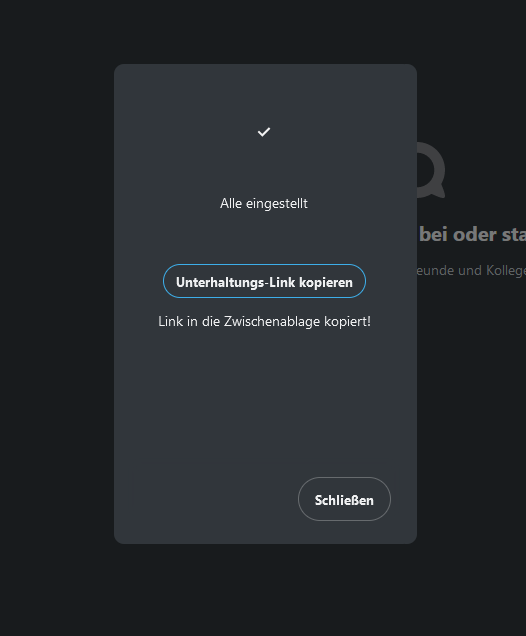
If you previously selected the “Allow guests to join via link” setting, you can now copy the link.
The guest link looks something like this example:
https://campus.der-seminar.com/call/a1bcdefg
Tip:
You can also create events in the calendar and have a group chat created automatically for them. You can find the instructions here.
