Maybe we can help?
Commands in Talk chat
1.Open talk
You must be an active user (sign up for subscription packages here) and have Talk included in your package (see overview here).
Launch CAMPUS (log in here) and
click the Talk icon in the top menu bar: (or click here).
2.Start a group chat
Your screen will then display a brief welcome message and, usually on the left side, an overview of your existing group chats:
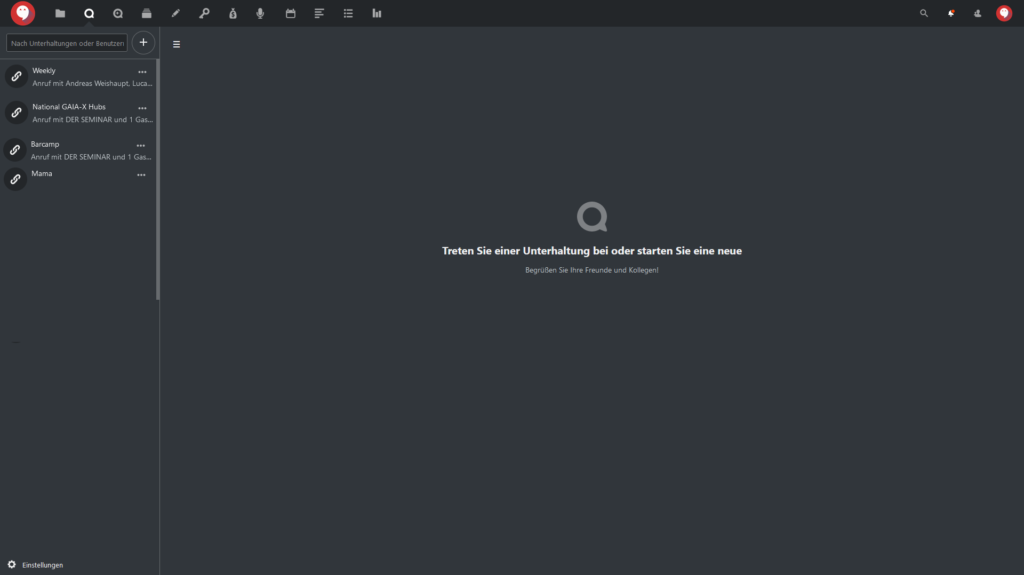
Click to enlarge.
If the left-hand menu bar isn’t visible, click the ≡ icon. The bar will then appear. From there, click on any conversation or create a new group conversation.
3.Chat in the group conversation
You can enter text in the chat window and add additional features.

The chat input window in DER SEMINAR Talk.
You can enter text in the main text box. The smiley face icon lets you enter emojis, and the paperclip icon opens up additional input options:

Options for adding to the chat entry.
The chat in Talk can be expanded with the following options:
- Upload from device: Upload files from your own device
- Share from files: Embed files from the file storage in the CAMPUS Cloud
- New text file: Embed a simple MD text file
- New document: Embed a text file from the file storage and edit it via DER SEMINAR OnlyOffice
- New spreadsheet: Embed a spreadsheet file from the file storage and edit it via DER SEMINAR OnlyOffice
- New presentation: Embed a presentation file from the file storage and edit it via DER SEMINAR OnlyOffice
- Create a new poll: Create and embed a poll for use in chat.
Future updates may add additional features that provide new ways to enhance chats and messages.
Tip:
You can also create events in the calendar and have a group chat created automatically for them. You can find the instructions here.
