Maybe we can help?
Open the chat edit group conversation
- Access Talk
You must be an active user (subscribe here) and have Talk included in your package (see overview here). Launch CAMPUS (log in here) and click the Talk icon in the top menu bar: (or click here).
Tip: Here you’ll find instructions on how to create a group chat.
- Overview of a group chat
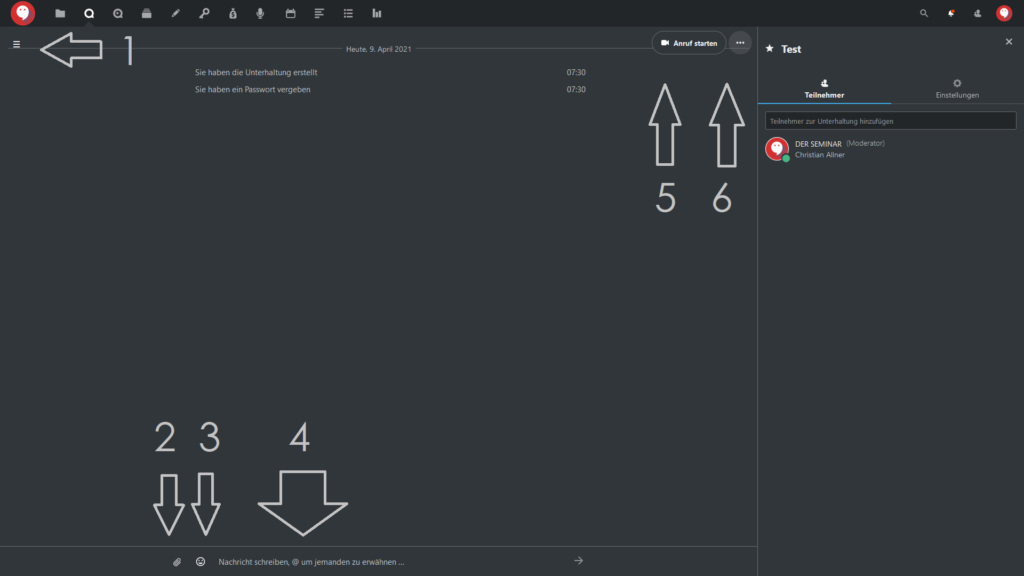
Your screen will then display a brief welcome message and, usually on the left side, an overview of your existing group chats:
Click to enlarge
In a group chat, you have the following options:
The ≡ icon with the left-hand menu bar (overview of all group chats and the option to create new ones via the + button)
Upload and insert files into the chat
Insert emojis into the chat
Type text in the chat
Start a video or audio call
Additional settings
2.1 Chat features in Talk
You can upload files directly from your computer or from the cloud storage integrated with DER SEMINAR CAMPUS at any time.
You can also insert emojis into your chat conversations.
Click to enlarge
In a group chat, you have the following options:
The ≡ icon with the left-hand menu bar (overview of all group chats and the option to create new ones via the + button)
Upload and insert files into the chat
Insert emojis into the chat
Type text in the chat
Start a video or audio call
Additional settings
2.1 Chat features in Talk
You can upload files directly from your computer or from the cloud storage integrated with DER SEMINAR CAMPUS at any time.
You can also insert emojis into your chat conversations.
2.2 Group Chat Settings
To the right of the “Start Call” button, click on “…” to access additional settings for Talk, specifically:
Full Screen: The chat window expands to full-screen view. You can exit this view by pressing the “f” key, or alternatively, press the “Esc” key
Rename Chat: You can give the group chat a different name
Share Link: You can enable or disable the option to join a group chat only via a link
Copy link: Only available if “Share link” is enabled; the join link is automatically saved to your clipboard
Password protection: You can set a password to provide additional security for the group chat
Enable lobby: You can start a lobby feature; participants in your chat will wait in a digital lobby until you, as the host, start the group chat.

Click to enlarge
- Right-hand menu column
The right-hand menu column contains two tabs:
Participants
Settings
3.1 Edit participants
In the “Participants” tab in the right-hand menu column, you’ll find an overview of all active (bold color) and inactive (faded color) participants, as well as guests who are participating via a link. You can invite new participants to the conversation and use the … function to change each participant’s status or delete them.
3.2 Settings
In the “Settings” tab, you can add a group chat to a project or adjust other settings.
The settings offer the following options:
Select Devices: You can choose between different microphones and cameras connected to your device
Folder for Attachments: Where should files be saved when uploaded in the chat?
Keyboard Shortcuts: An overview of all keyboard shortcuts
